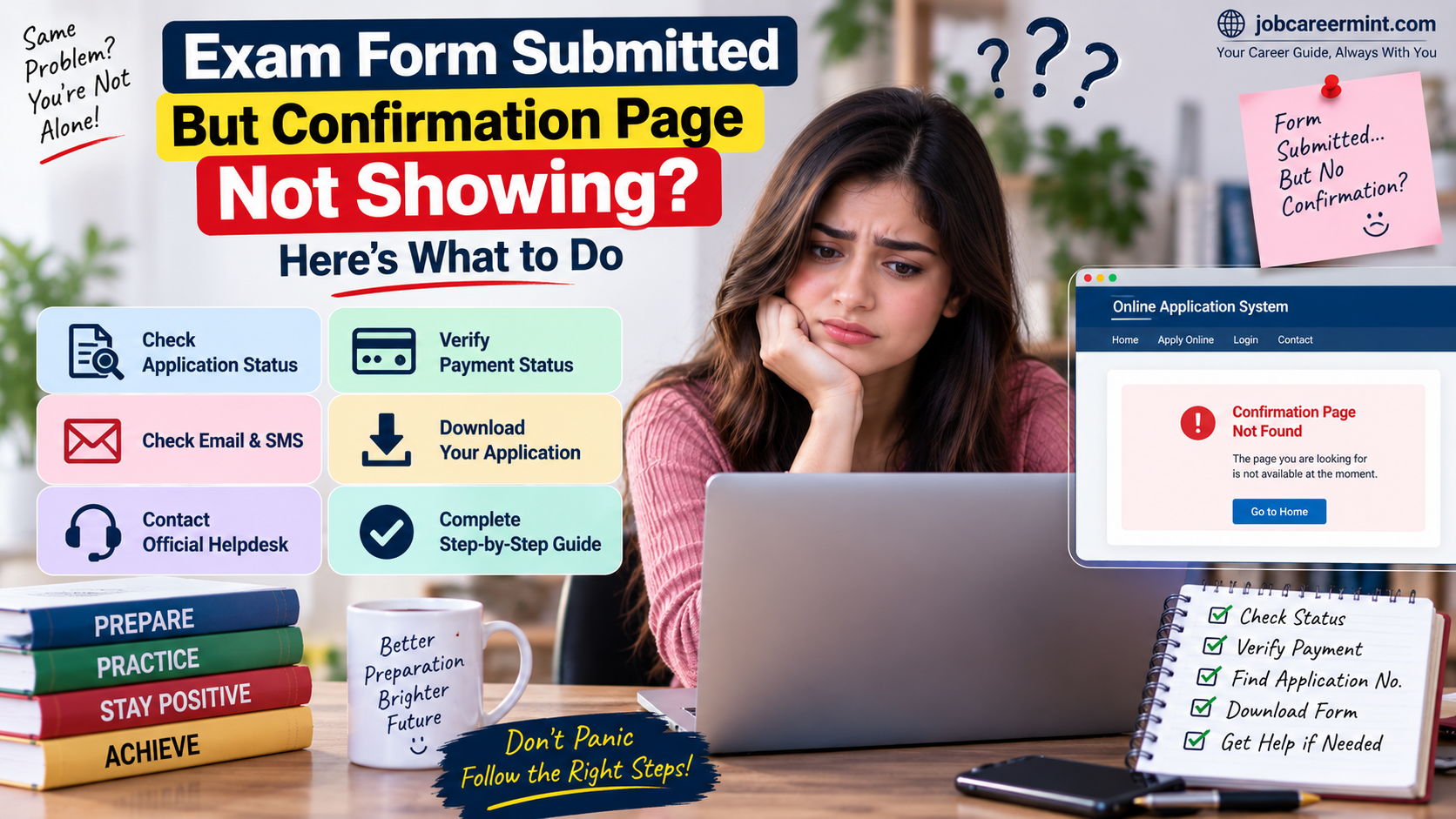
Exam Form Submitted But Confirmation Page Not Showing? Here’s What to Do
Submitted an online government exam application but the confirmation page is not showing? Do not immediately submit the form again or make another payment.
This problem can happen when the payment gateway, application portal or internet connection does not properly complete the final submission process. In some cases, the payment may be successful while the application status takes additional time to update.
The correct solution depends on what happened after you clicked the final submission button. This guide explains how to check whether your application was actually submitted, where to find the application number, what to do if payment was deducted, and when you should contact the examination authority.
Why Is the Exam Application Confirmation Page Not Showing?
There can be several reasons why the confirmation page does not appear after submitting an online exam form.
- The website may have timed out during final submission.
- The payment gateway may not have returned the response correctly.
- Your internet connection may have been interrupted.
- The examination portal may be experiencing heavy traffic.
- The application may have been saved but not finally submitted.
- The payment may have been completed while the application status is still being updated.
- The browser session may have expired.
Government application portals can behave differently, so the exact process depends on the examination authority and website you used.
First Check: Did You Receive an Application Number?
The first thing to check is whether the portal generated an application number, registration number or application reference number.
Many government portals use a unique application or registration number to identify a submitted form. For example, ServicePlus allows applicants to track applications using an Application Reference Number and submission date. 1
If you received an application number, do not immediately assume that your form failed just because the confirmation page did not load.
Check Your Email and SMS
Search the email address and mobile number used during registration for messages from the examination authority.
Look for terms such as:
- Application Submitted
- Application Successfully Submitted
- Registration Number
- Application Number
- Payment Successful
- Confirmation
- Application Status
Also check the spam, promotions or junk folder of your email account.
Step-by-Step: What to Do If Confirmation Page Is Missing
Step 1: Do Not Submit the Form Again Immediately
If you have already completed the application and payment, avoid immediately filling out another form.
Submitting a second application without checking the first application’s status can create unnecessary confusion. In fee-paying applications, you could also risk making another payment before knowing what happened to the first transaction.
Step 2: Log In Again
Return to the official examination portal and log in using your registered credentials.
Look for options such as:
- Application Status
- My Applications
- View Application
- Application History
- Print Application
- Download Confirmation Page
The wording can be different on every examination website.
Step 3: Check Your Application Status
If the portal shows your application as Submitted, Successfully Submitted, Completed or Accepted, the missing confirmation page may simply be a download or display issue.
If the application is showing as Incomplete, Draft, Pending or Payment Pending, you should follow the instructions provided by that particular examination portal.
Step 4: Check Your Payment Status
If an application fee was required, check whether the payment is shown as successful on the examination portal.
Do not rely only on your bank statement. A bank transaction showing a debit does not by itself prove that the examination authority has successfully linked the payment with your application.
Some government portals provide a separate payment verification or revalidation option. ServicePlus, for example, instructs users whose amount was deducted but whose payment was reported as failed to use its application-status/payment revalidation process. 2
Step 5: Try Downloading the Application Form
If the portal provides a Print Application, Download Application or similar option, open it.
If your completed form displays all required information and the portal shows a submitted status, save the PDF for your records.
Step 6: Try Again Later if the Website Is Busy
Do not keep refreshing the application page continuously if the website is slow or temporarily unavailable.
Heavy traffic around the application deadline can affect page loading and payment processing. Official UPSC guidance also advises applicants to retry later when access to the application page is delayed and recommends not waiting until the last day or final hours to apply. 3
Payment Successful but Confirmation Page Is Missing
This is one of the most confusing situations for applicants.
You may see a successful debit in your bank account or UPI app, but the examination portal may still show the application as incomplete or payment pending.
In this situation, first check your application dashboard and payment status on the official portal.
If the portal provides a payment reconciliation, revalidation or transaction-status option, use that option before making another payment.
Payment Deducted but Application Shows Incomplete
If your bank account has been debited but the application still appears incomplete, take screenshots of:
- Payment transaction
- Transaction ID or reference number
- Application number
- Application status
- Date and time of payment
- Error message, if displayed
Keep these details ready if you need to contact the examination authority.
Do not share your OTP, password, card PIN, UPI PIN or other confidential authentication information with anyone claiming to help you.
What If You Never Received an Application Number?
If the portal never generated an application or registration number, first check whether the registration process was actually completed.
Some portals generate an identification number after an initial registration stage, while others generate the final application number only after the complete application is submitted.
For example, UPSC’s official FAQ explains that a Registration ID is generated after completion of Part-I registration; if the ID has not been generated and the applicant was disconnected during the process, the registration details may need to be entered again. 4
Therefore, do not assume that every partially completed form has been submitted successfully.
Confirmation Page Not Showing After Successful Submission
Sometimes the application is successfully submitted but the confirmation page fails to load.
In that situation, check whether the portal provides a way to retrieve the submitted application using your login credentials.
Also check whether the authority has sent an SMS or email confirming successful submission. Some examination systems use SMS and email communication during different stages of the recruitment or application process. 5
If the application status is clearly shown as successfully submitted, save the application details and try downloading the confirmation page again later.
Can I Apply Again If the Confirmation Page Is Missing?
Do not automatically submit another application simply because the confirmation page did not appear.
First determine whether the original application exists in your dashboard and whether its payment and submission status are complete.
If the examination notification specifically allows multiple applications or provides instructions for correcting an incomplete submission, follow those rules. The correct procedure varies between examination authorities.
When Should You Contact the Exam Authority?
You should consider contacting the official helpdesk if:
- Money has been deducted but the portal does not recognise the payment.
- Your application number was generated but the application cannot be retrieved.
- The portal continues to show an incorrect payment status.
- The application deadline is approaching and the problem remains unresolved.
- The portal displays a technical error that prevents final submission.
- You have followed the official payment-reconciliation process but the status has not changed.
Use only the contact details published on the official examination website. Avoid unofficial phone numbers, Telegram groups or social-media accounts claiming to provide application support.
Information to Keep Ready Before Contacting Support
| Information | Why It Helps |
|---|---|
| Application Number | Helps identify your application |
| Registration ID | Helps locate your registration |
| Transaction ID | Helps trace the payment |
| Payment Date & Time | Helps identify the transaction |
| Registered Mobile Number | Used for verification where required |
| Screenshot of Error | Shows the technical problem |
Common Mistakes Candidates Should Avoid
- Making another payment without checking the first transaction.
- Submitting another application without checking the application dashboard.
- Ignoring the application status after payment.
- Waiting until the final few hours of the deadline.
- Sharing OTPs or passwords with unofficial agents.
- Using an unofficial website to check application status.
- Deleting payment SMS or transaction information.
How to Prevent Confirmation Page Problems
There is no way to completely prevent technical problems on a government application portal, but candidates can reduce the risk.
- Apply well before the deadline.
- Use a stable internet connection.
- Keep your registered mobile number active.
- Save your application number immediately.
- Download the submitted application whenever the portal allows it.
- Save the payment transaction ID.
- Take a screenshot of the successful submission page.
- Use the official examination website instead of links from unknown sources.
Frequently Asked Questions
Why is my exam confirmation page not showing?
The page may not appear because of a temporary portal error, internet interruption, payment-gateway response problem or an incomplete final submission. Check your application dashboard and status before trying again.
My payment was successful but confirmation page is missing. What should I do?
First check the application and payment status on the official portal. If a payment verification or revalidation option is available, use it before making another payment.
Does successful payment mean my exam form is submitted?
Not necessarily. Payment and final application submission can be separate stages. Confirm that the application itself is marked as successfully submitted or that the portal has generated the required confirmation.
What if I did not receive an application number?
Check your registration email, SMS and application dashboard. If the registration number was never generated, review the examination authority’s instructions for incomplete registration.
Can I submit the application again?
Do not submit another application without first checking the status of the original application and the examination notification’s rules. Multiple applications may have different consequences depending on the examination.
What should I do if money is deducted twice?
Keep both transaction details and contact the official examination/payment support channel. Do not make further payments unless the official portal instructs you to do so.
Is the confirmation page necessary?
It is useful evidence of the completed application and should be saved whenever the examination portal provides it. Also keep your application number, payment receipt and submission details.
Final Takeaway
If your exam form has been submitted but the confirmation page is not showing, do not panic and do not immediately submit another form. First check your application dashboard, registration number, payment status and email/SMS confirmation.
If money has been deducted but the application status is unclear, keep the transaction details and use the official payment-verification process provided by the examination portal. If the problem continues, contact the official helpdesk with your application and transaction details.
The safest approach is simple: verify the application first, verify the payment second, and only then take further action.
Related Application Help Guides
Also check these useful problem-solving guides from JobCareerMint:

Hi, I’m Adi Malik, the founder of JobCareerMint. I share the latest government and private job updates, career guidance, resume tips, interview preparation, and skill development content to help students, freshers, and job seekers build successful careers. My goal is to provide accurate, easy-to-understand, and valuable information that helps people find better career opportunities.